Portfolio

Desktop and mobile app

LaTeX Studio

Write LaTeX in Arabic, French and English, on your PC and on your phone.

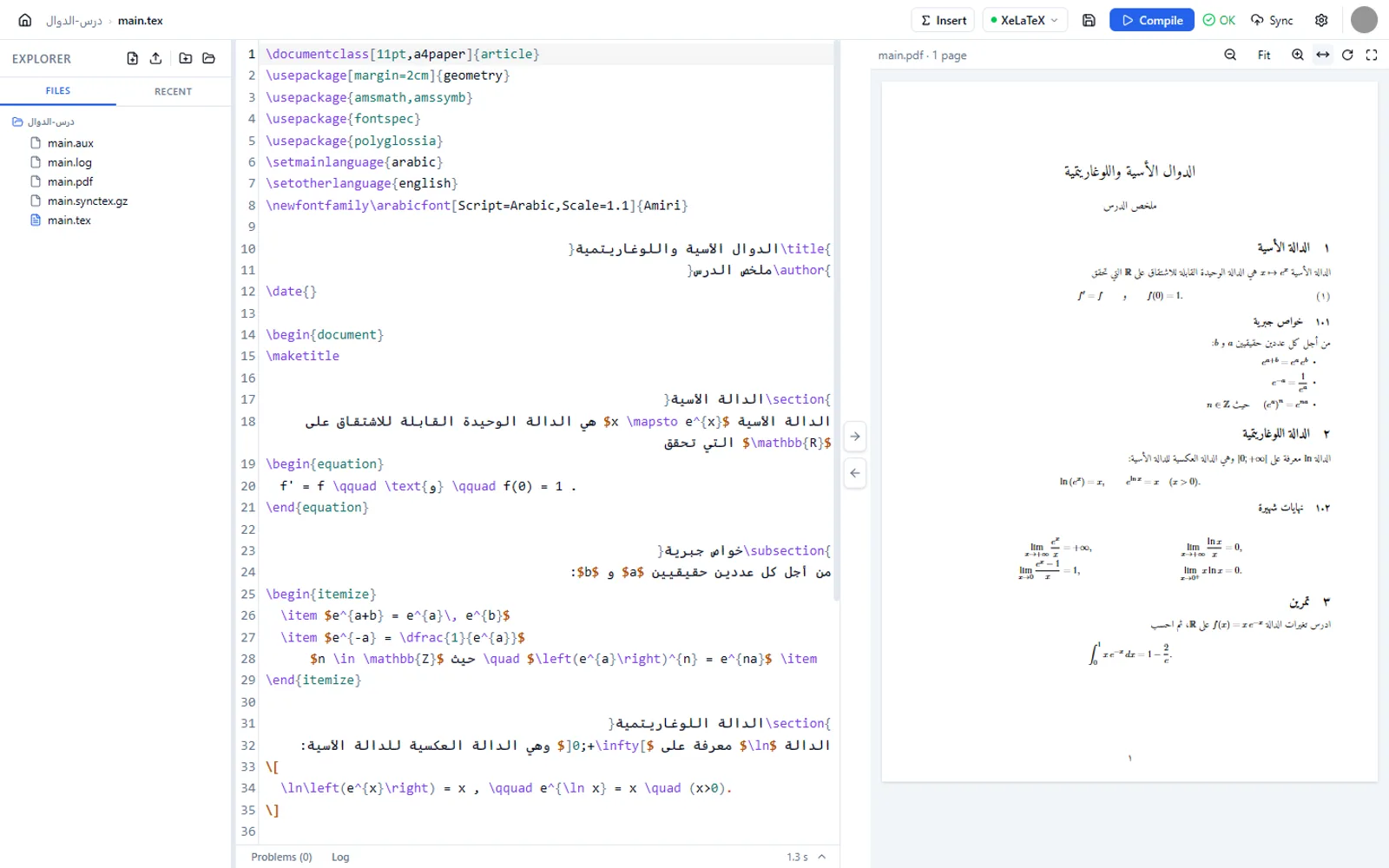
LaTeX Studio is an editor for teachers, students and researchers who write mathematics in Arabic. Right-to-left text behaves properly in the editor, documents compile with XeLaTeX, and the PDF appears next to your code.

Version 0.4.2 · November 14, 2026 · Free download. Writing and compiling on Windows need no account.

LaTeX Studio on Windows: Arabic LaTeX source on the left, the compiled PDF on the right

What it does

Everything needed to go from a blank page to a finished PDF.

  • Arabic done right

    Arabic lines run right to left while LaTeX commands stay readable. The cursor and selection behave as expected in mixed text.

  • Compile with one key

    pdfLaTeX, XeLaTeX or LuaLaTeX. Press F5 and the PDF appears beside the code.

  • PDF preview and SyncTeX

    Zoom, fit to width, full screen. Click a line in the PDF to open its source, or jump from the code to the PDF.

  • Readable errors

    Errors, warnings and layout notes are sorted, each with its file and line. Click one to go to the line.

  • Context-aware completion

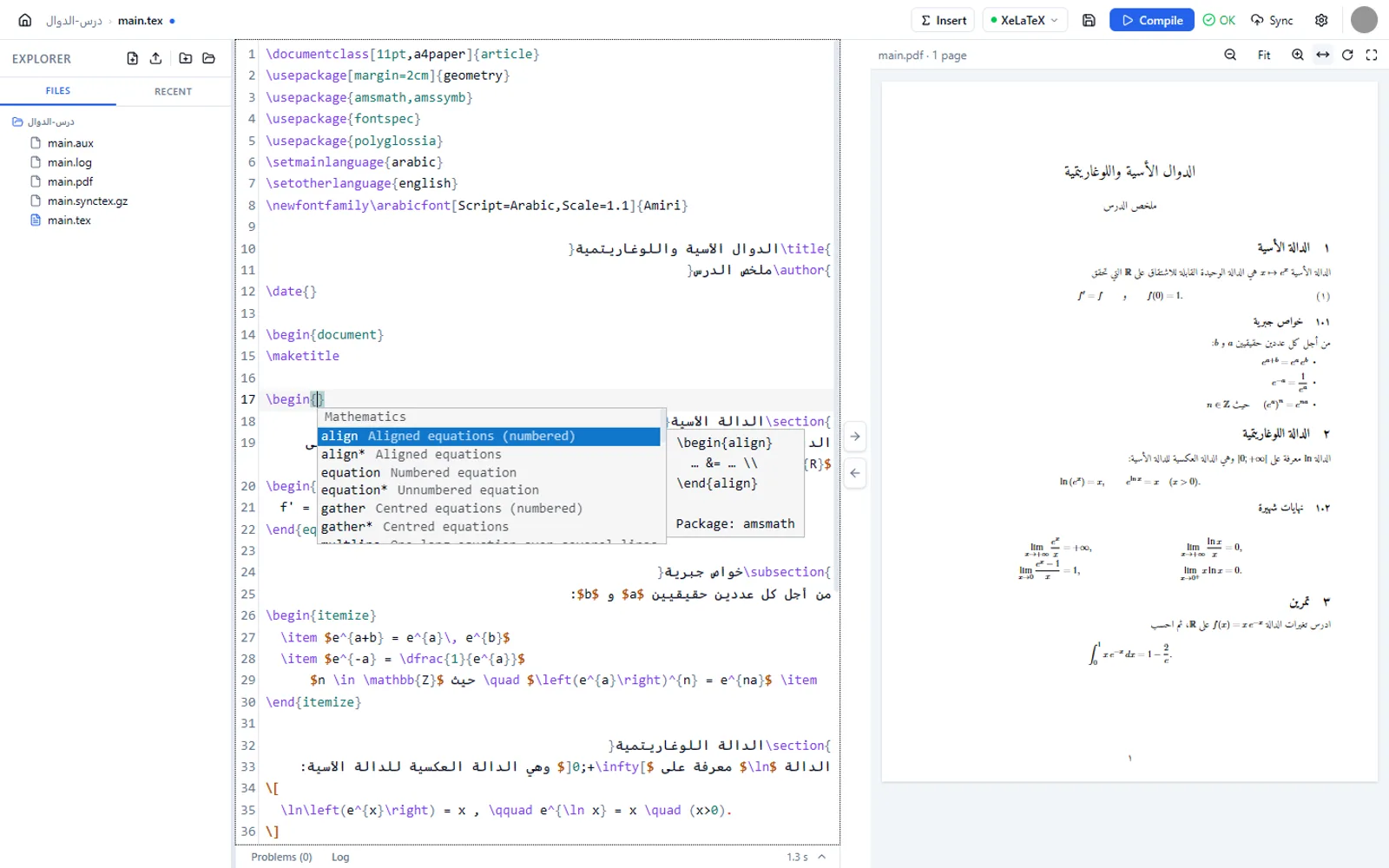
    Commands, environments, packages, labels and file names, suggested according to where the cursor is: math, list, table or preamble.

  • Insert panel

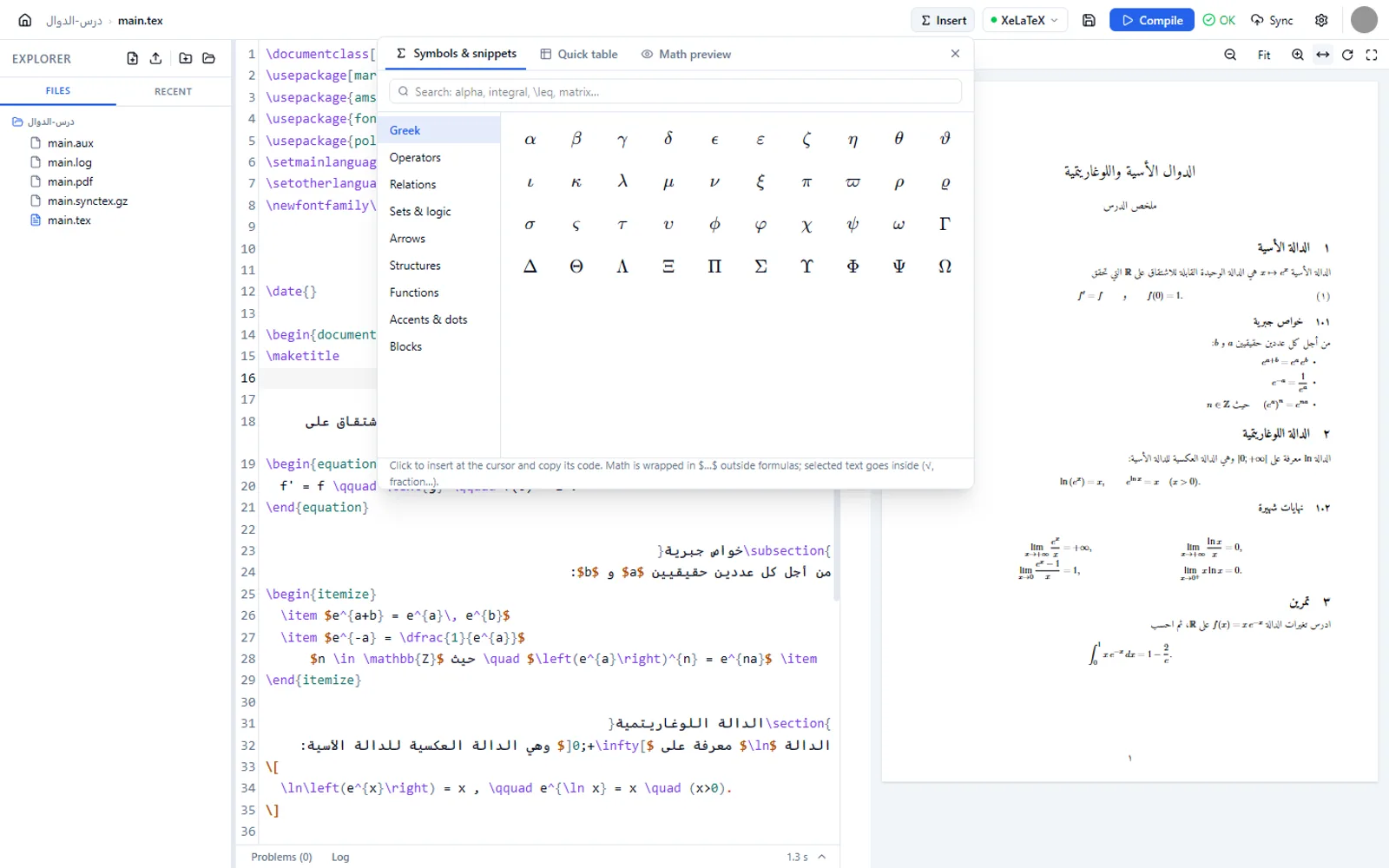
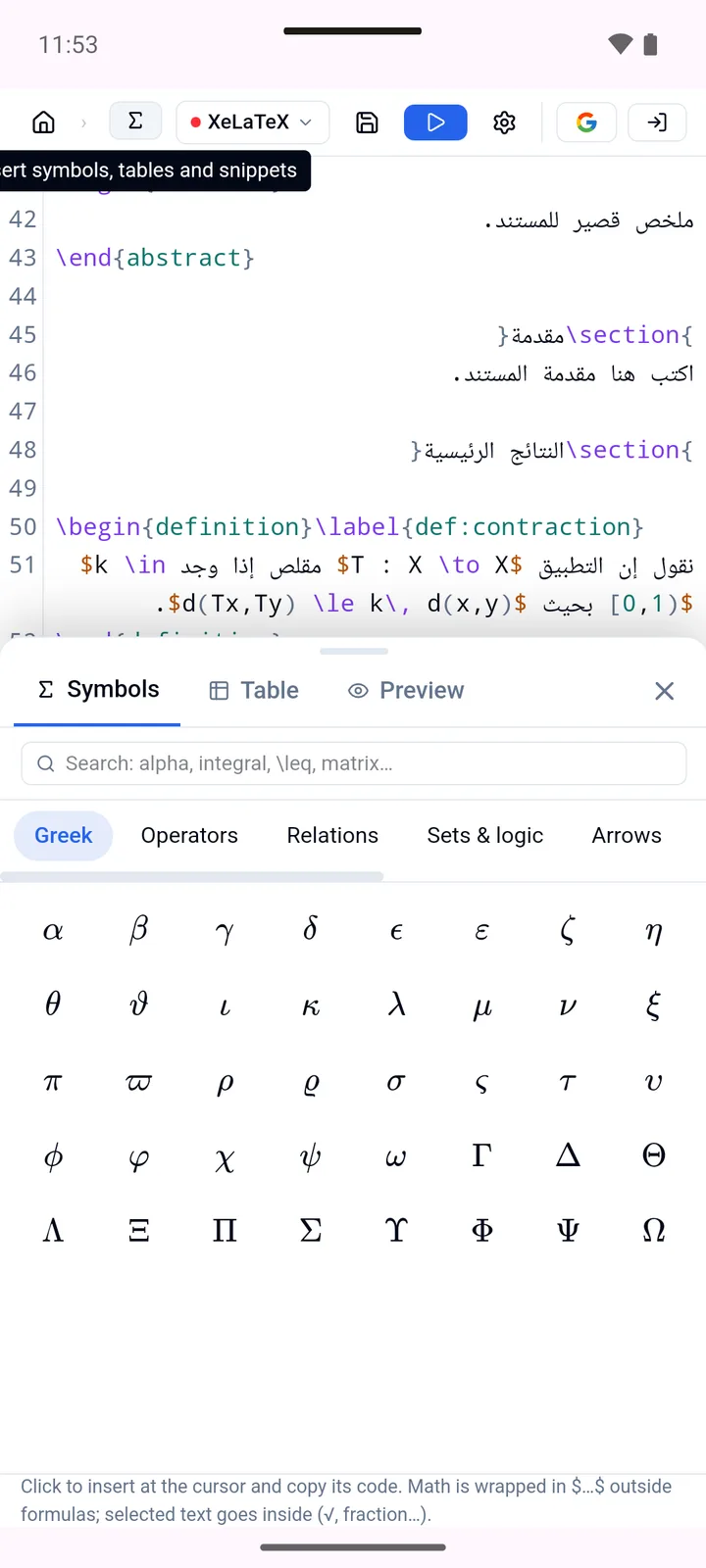
    More than 200 math symbols and blocks, a quick table builder and a math scratchpad. A click inserts the symbol and copies its code.

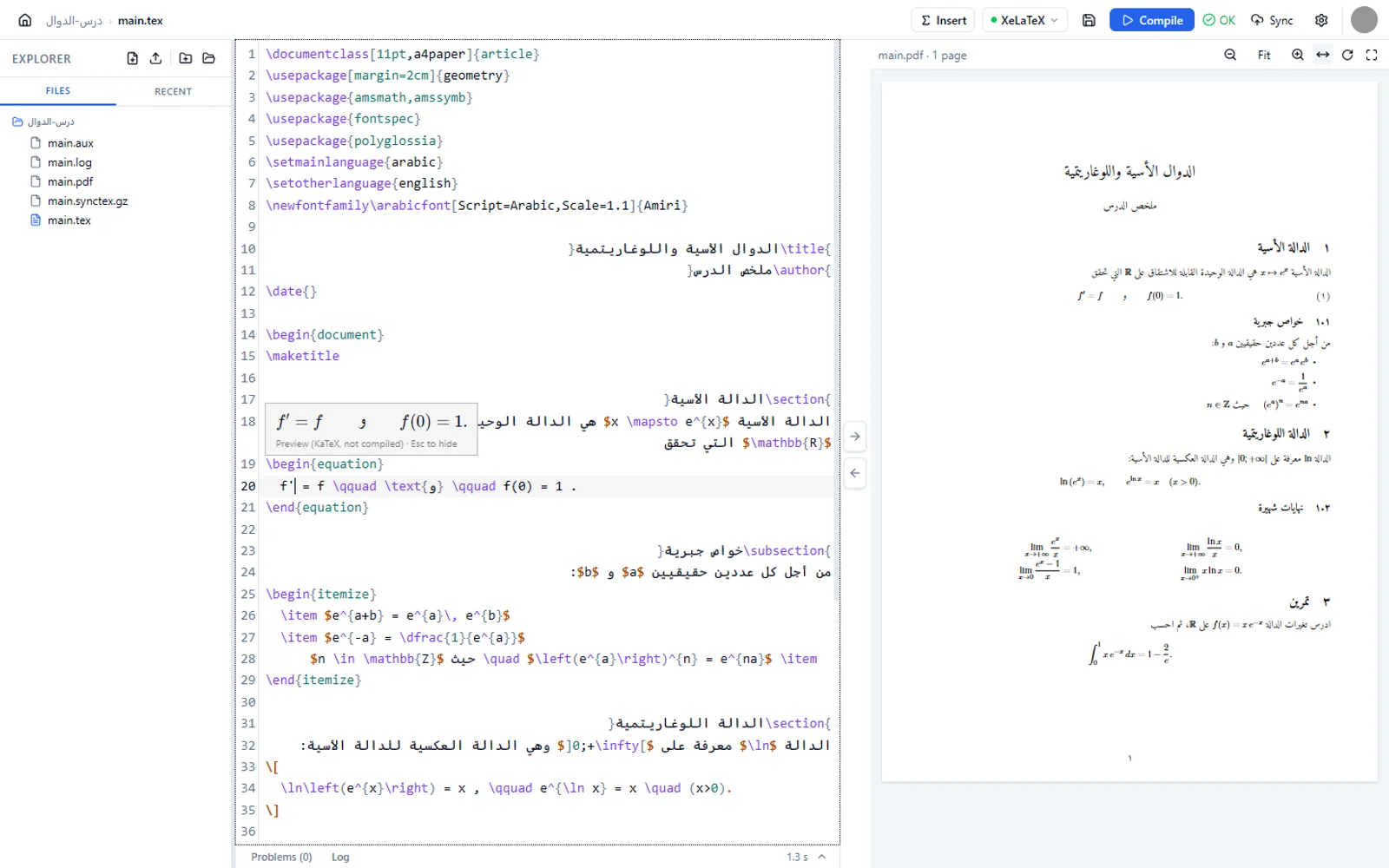
  • Formula preview without compiling

    Put the cursor inside a formula and see it rendered immediately.

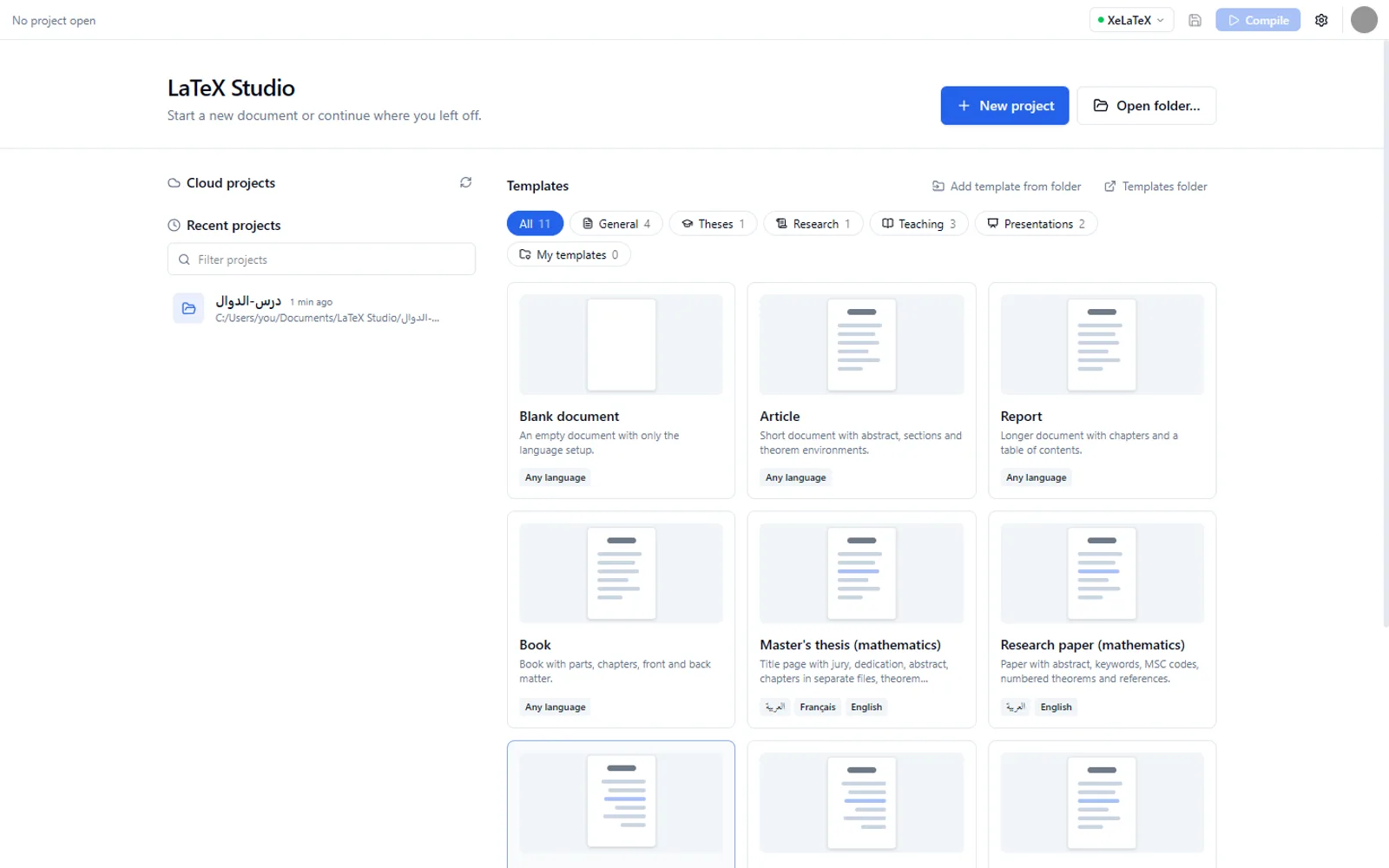
  • Ready-made templates

    Article, report, book, master's thesis, research paper, exercise sheet, lesson plan, lecture notes and Beamer slides, in Arabic, French or English.

  • Phone and PC together

    With an account, projects sync between your devices, and the phone compiles on the server.

  • Your files stay yours

    Projects are ordinary folders on your disk. Nothing leaves your device unless you choose to sync.

Screenshots

Taken from version 0.4.2. Click an image to see it full size.

On Windows

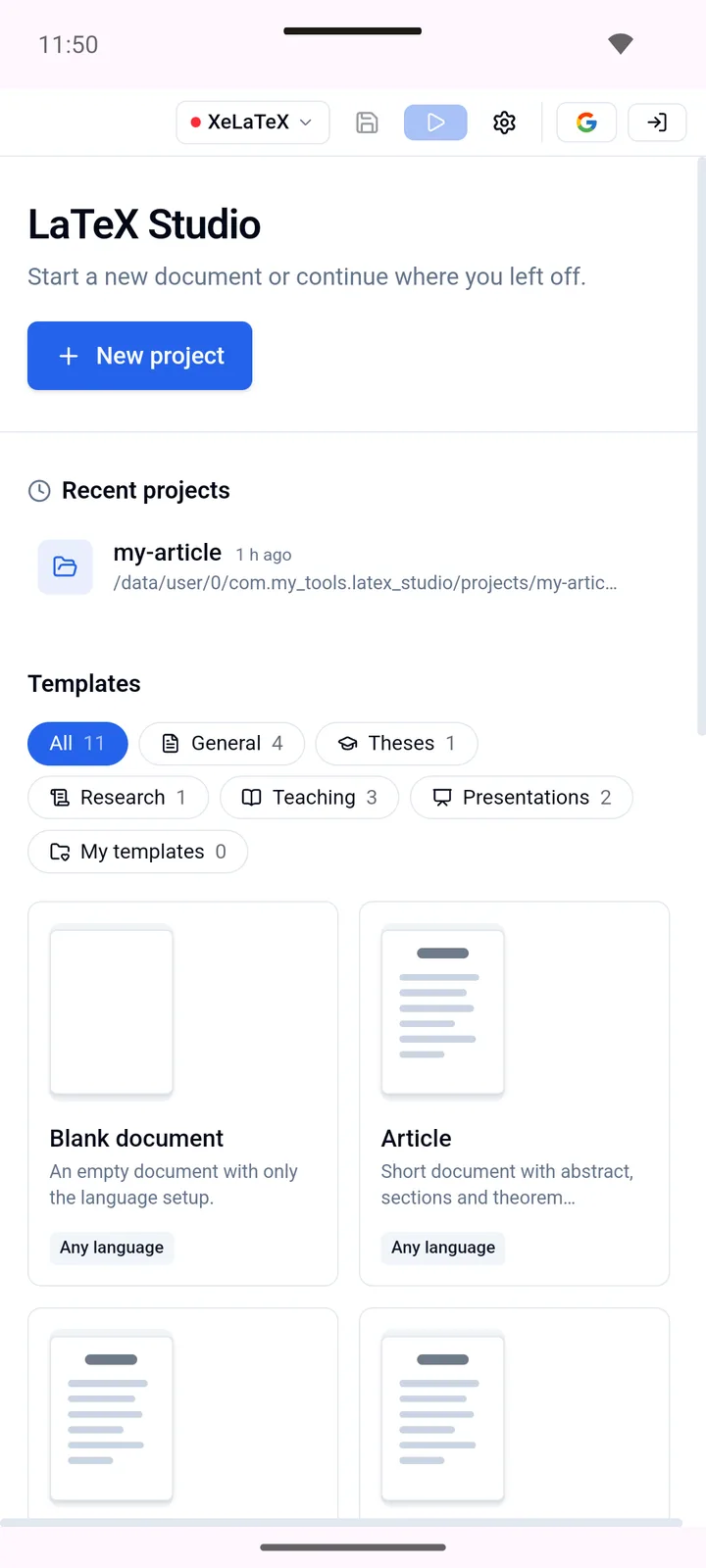
  • Start screen: recent projects and templates.
    Start screen: recent projects and templates.
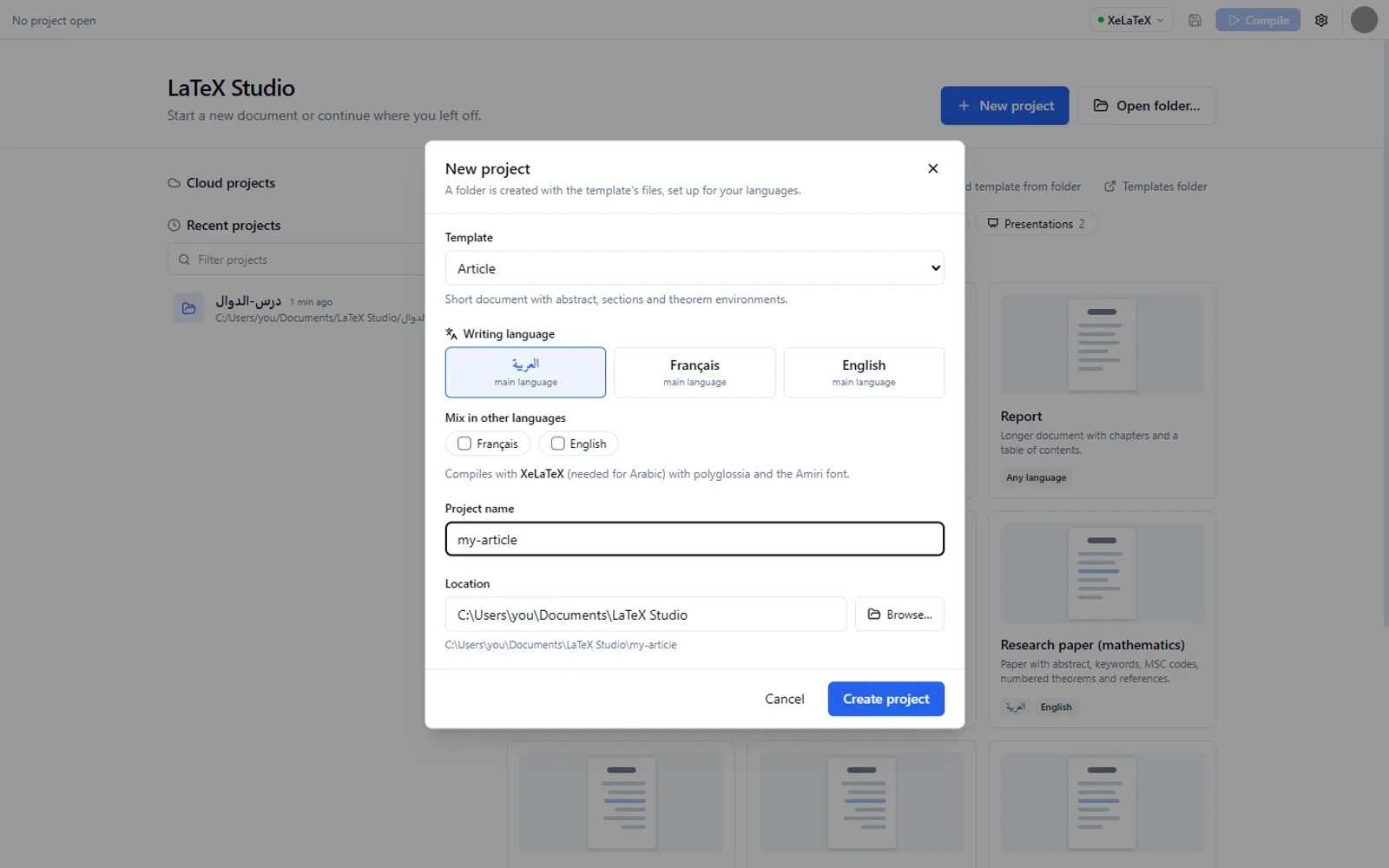
  • New project: template, writing language and location.
    New project: template, writing language and location.
  • Formula preview while the cursor is inside an equation.
    Formula preview while the cursor is inside an equation.
  • Completion after \begin: math environments first.
    Completion after \begin: math environments first.
  • Insert panel: symbols, quick table, math preview.
    Insert panel: symbols, quick table, math preview.

On Android

  • Start screen on the phone.
    Start screen on the phone.
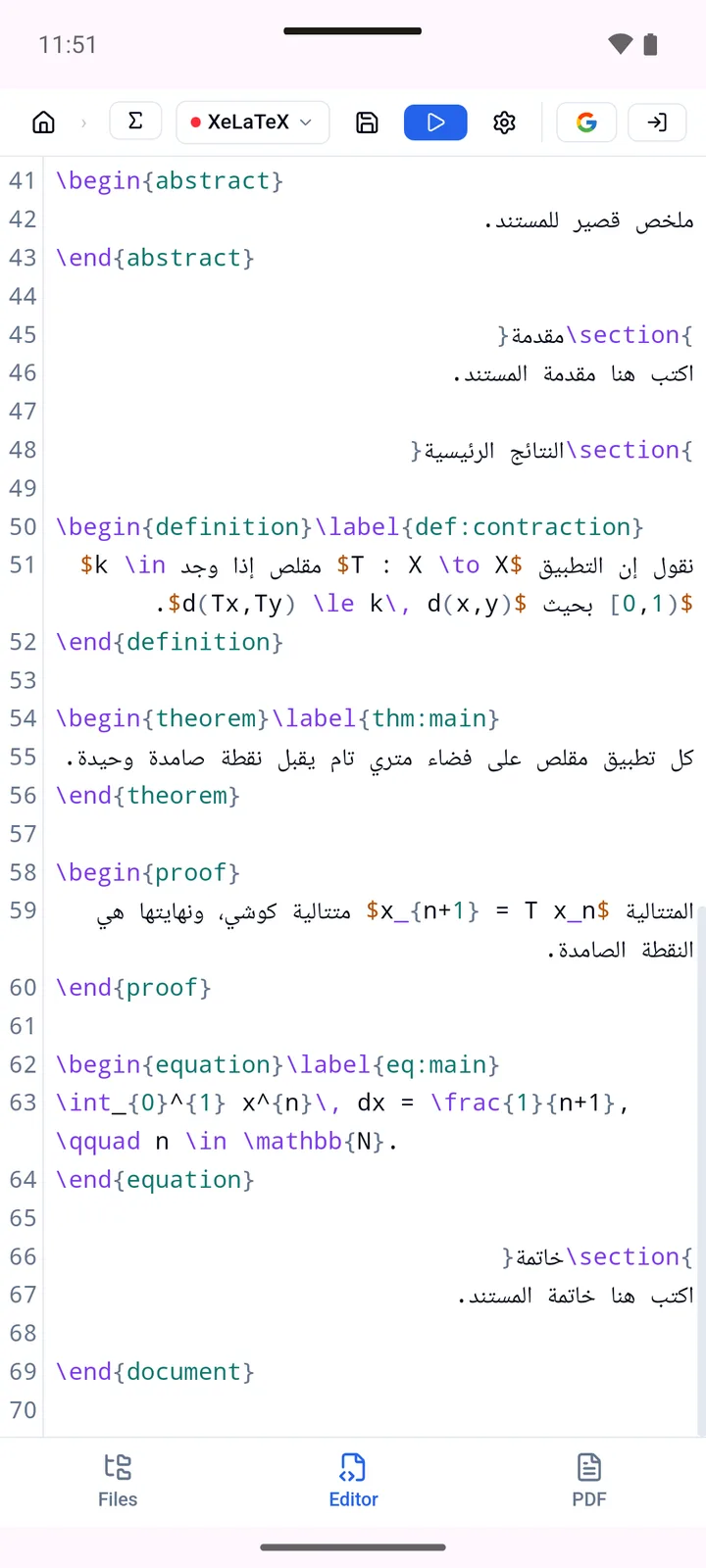
  • The editor with Arabic text.
    The editor with Arabic text.
  • The Insert panel as a bottom sheet.
    The Insert panel as a bottom sheet.
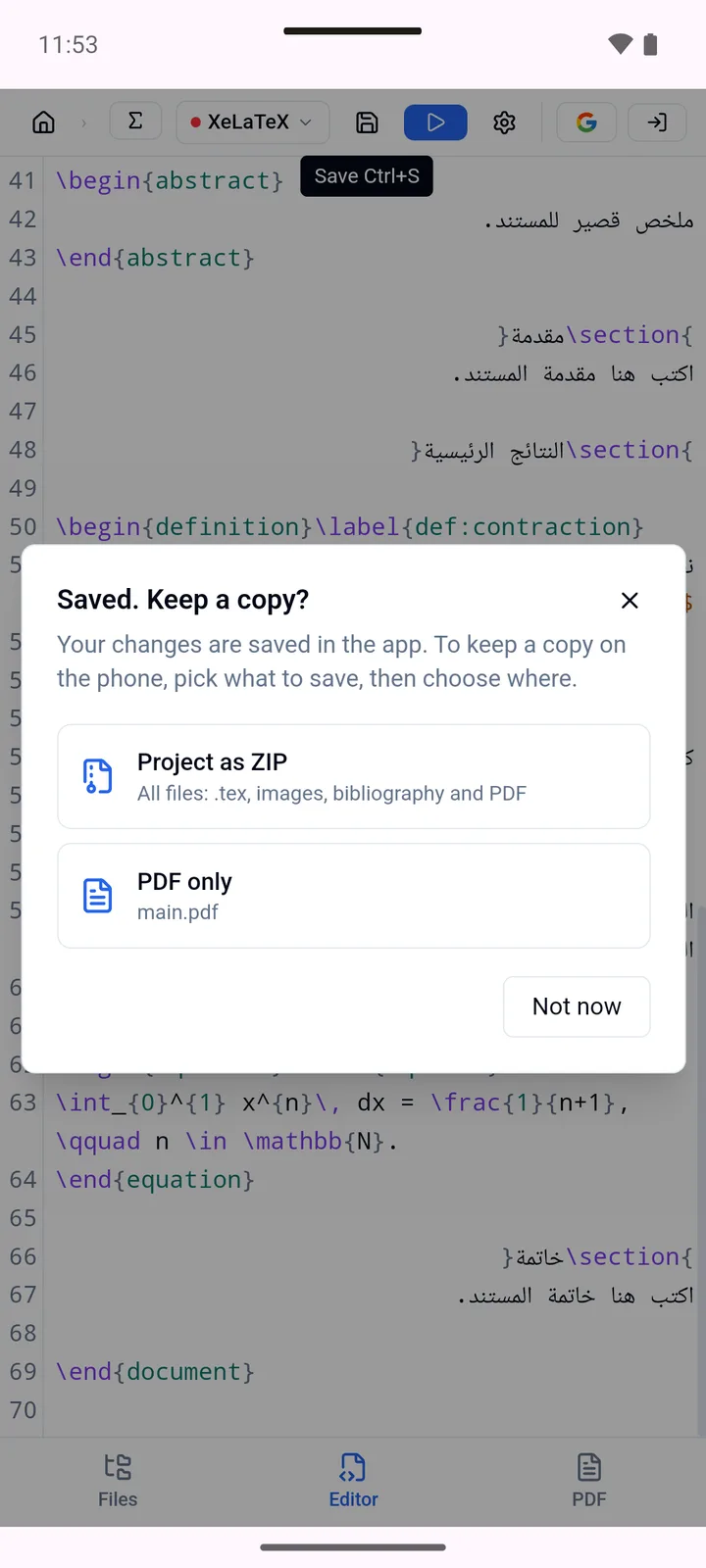
  • Save, then keep a copy as a ZIP or a PDF.
    Save, then keep a copy as a ZIP or a PDF.

Installation

Pick your device. Each step describes what you will see on screen.

Requirements: Windows 10 or 11, 64-bit.

Steps

  1. Download the installer LaTeX-Studio-0.4.2-setup.exe with the button at the top of the page.
  2. Open the file. Windows may show “Windows protected your PC” (SmartScreen), because the app is new and not signed with a paid certificate. Click More info, then Run anyway.
  3. Follow the installer. If the WebView2 component is missing (rare on Windows 10 and 11), the installer downloads it, so stay connected to the internet.
  4. To compile on your PC, install MiKTeX from miktex.org. During setup, allow it to install missing packages automatically. Without MiKTeX the app still works as an editor, and with an account it compiles on the server.
  5. Open LaTeX Studio from the Start menu. A green dot next to the engine name (XeLaTeX) means the engine was found.

Updating: Run the new installer. It replaces the old version; your projects and settings are kept.

Requirements: Android 7.0 or later.

Steps

  1. Download LaTeX-Studio-0.4.2.apk on the phone with the button at the top, or copy it from your PC.
  2. Open the file from the notification or from Files › Downloads.
  3. Android asks whether to allow installs from this source: tap Settings, turn on Allow from this source, then go back.
  4. Tap Install. If Google Play Protect says the app is unknown, tap More details › Install anyway. The app is not on the Play Store yet, so Play Protect has not seen it before.
  5. Open LaTeX Studio. On the phone, compiling happens on the server, so sign in first (see “Accounts” below).

Updating: Install the new APK over the old one; your projects stay. If Android says “App not installed”, keep a copy of your projects first (Save › Project as ZIP), uninstall the old app, then install again.

Accounts

An account adds sync between devices, cloud projects and compiling on the server, which the Android app needs. Accounts are currently by invitation.

Ask for an account

macOS, Linux and iPhone

Not available yet. These versions have not been built or tested.

Check the download (optional)

The SHA-256 fingerprint of the file you downloaded should match the one below. On Windows, run certutil -hashfile FILE SHA256 in a terminal.

LaTeX-Studio-0.4.2-setup.exe8.0 MB
69e957aeb53c70af66958d1a1cab5bfe1dd1490f5f5d444660905032b9db894a
LaTeX-Studio-0.4.2.apk43.7 MB
c2febda93bcdcd706662807471e8cc123ddbf9249d1f151451ef570578e68288

User guide

The basics in a few minutes.

  1. Create a project

    Click New project, choose a template, the writing language (Arabic, French or English) and where to save it. A folder is created with a ready-to-use main.tex.

  2. Write

    Type in the editor. A backslash \ brings up command suggestions, and \begin{ lists the environments that fit where you are. Tab moves to the next field of an inserted block.

  3. Compile and read the PDF

    Press F5 or Compile. The PDF appears on the right. The → and ← buttons between the code and the PDF show where a line is in the PDF, and where a part of the PDF comes from in the code.

  4. Fix errors

    If the build fails, the Problems panel lists each error with its line; click it to go there. Red errors stop the build, yellow warnings can wait. The Log tab shows the full engine output.

  5. Insert symbols and tables

    Open Σ Insert. Clicking a symbol inserts it (inside $…$ if you are outside a formula) and copies its code. The Quick table tab builds a table from a number of rows and columns.

  6. Save and share

    Ctrl+S saves. On the phone, Save also offers a copy: the whole project as a ZIP, or the PDF only, saved where you choose (for example Downloads).

  7. Phone and PC

    Sign in with the same account on both devices. Use Sync inside a project, or open it from Cloud projects on the start screen of the other device.

Troubleshooting

A red dot next to XeLaTeX, or “engine not found”

No TeX distribution was found on the PC. Install MiKTeX, then restart LaTeX Studio. On the phone the dot is always red, because compiling happens on the server.

The first compile takes a long time

MiKTeX downloads the packages a document needs the first time they are used. Later compiles are much faster.

Arabic letters are disconnected or shown as boxes in the PDF

Compile with XeLaTeX, not pdfLaTeX, and keep the polyglossia and Amiri lines that the template puts in the preamble.

“Compilation stopped after 120 s”

The engine got stuck, usually on an error it cannot recover from. Open the Log tab: the last lines show where it stopped.

Windows blocks the installer

Click More info, then Run anyway. The warning appears because the installer is not signed with a paid certificate.

“App not installed” on Android

Check that there is free space on the phone. If an older copy from another source is installed, keep a copy of your projects, uninstall it, then install again.

“Not signed in or session expired”

Sign out and back in from the account button. In Settings, the server address should be https://latex.kerbani.net.

A question, an idea or a bug?Write to me